
Why Telegram is Perfect for Your AI Agents
Telegram is completely free and designed for both professionals and entrepreneurs. Whether you have one AI assistant or a squad of specialized bots working on different tasks, Telegram provides the ideal platform.
- Free forever — No hidden costs for your agents or bots
- Multiple bots supported — Create as many as you need for different functions
- Chat from anywhere — Access bot conversations from your phone OR your computer
Best of all, setup takes just a few minutes.
Step 1: Get Telegram on Your Phone
Start by downloading Telegram to your smartphone:
Open the app once installed and complete the quick signup with your phone number.
Step 2: Pair Your Computer
Head to web.telegram.org in your browser.
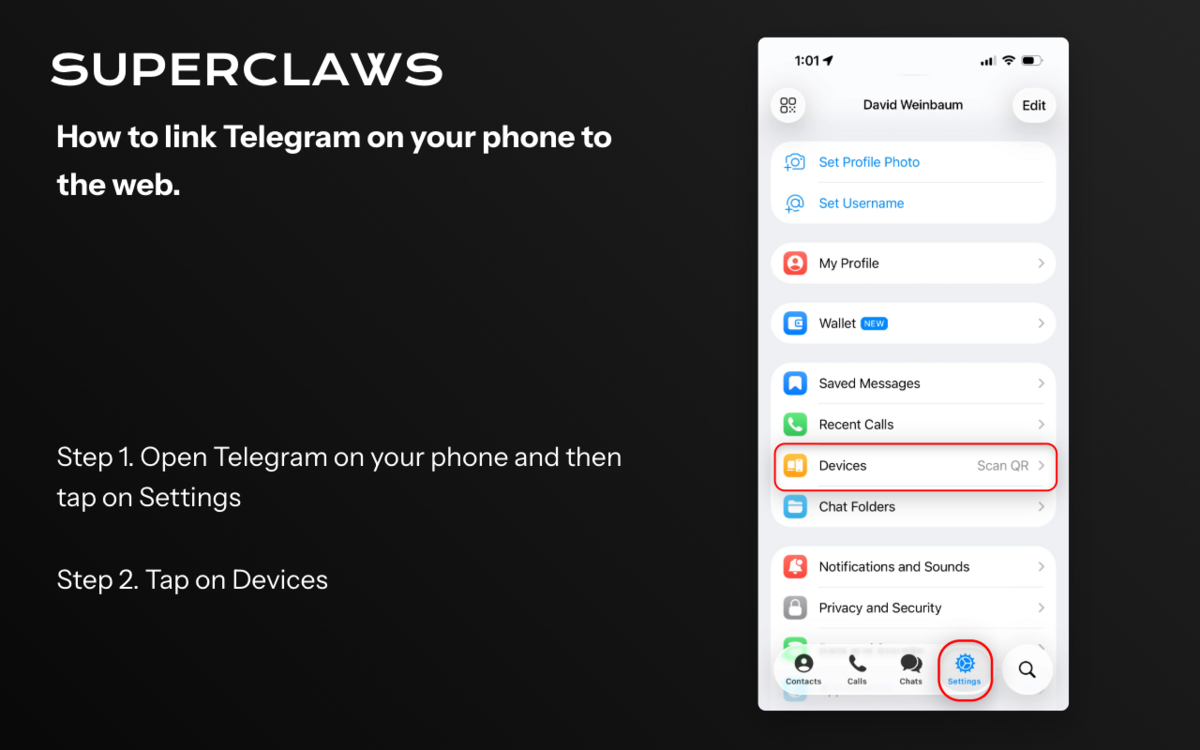
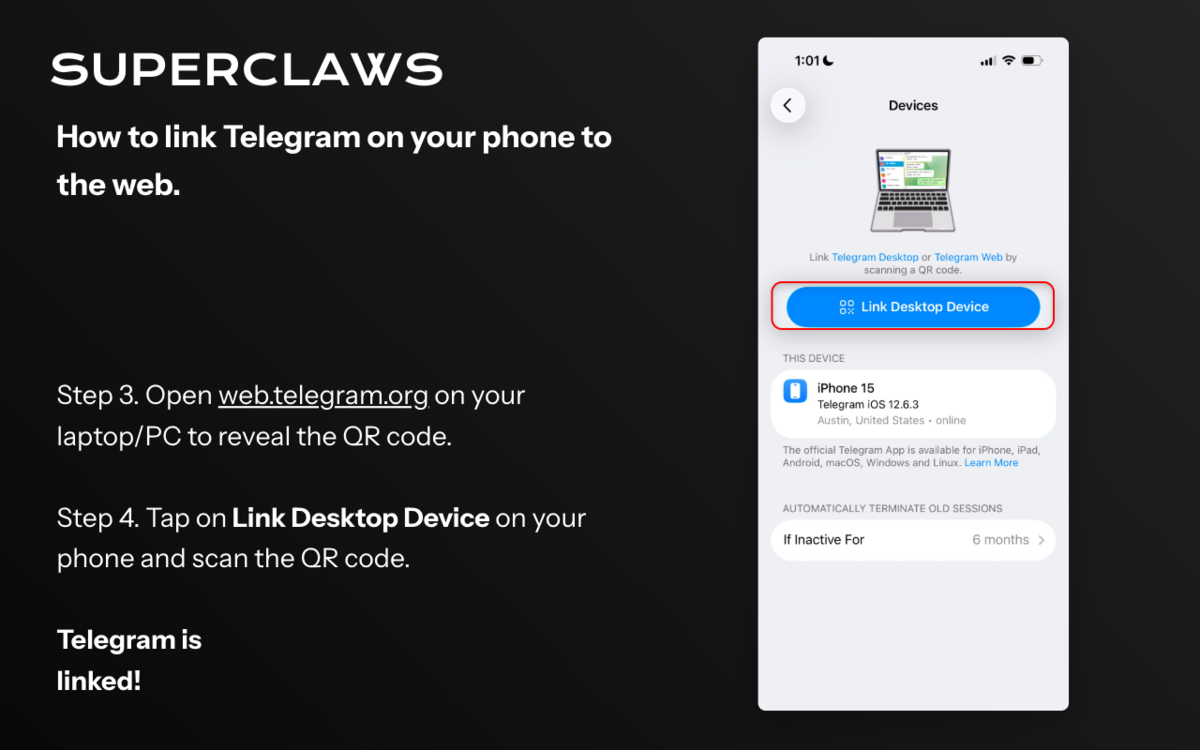
To pair your phone with the web client:
- Open Telegram on your phone
- Tap Settings → Devices
- Tap Link Desktop Device
- Scan the QR code shown on web.telegram.org
You're now paired and ready to go.
Step 3: Meet BotFather
BotFather is the official Telegram bot that lets you manage all your Telegram bots. Think of it as your bot control center — create new bots, edit settings, manage API tokens, and more. Every Telegram bot creator needs BotFather.
In the web client, search for @BotFather and open the conversation. Alternatively, go to https://t.me/botfather and open the conversation from there.
Step 4: Create Your Bot
Follow this video to create a Telegram Bot and then a create a Bot Token. Alternatively, read on below!
Inside BotFather:
- Click Start (or send
/start) - Click Create a New Bot (or send
/newbot) - Enter a name for your bot (e.g., "My Assistant")
- Enter a username that ends in
bot(e.g.,my_assistant_bot) — this must be unique across all of Telegram
BotFather will give you a Bot Token — copy it to your clipboard.
Step 5: Connect to SuperClaws
When setting up a new agent in SuperClaws, paste your Bot Token into the designated field during configuration. That's it — your bot is now connected and ready to respond.
Questions? Head over to docs.superclaws.io for full documentation.